
Symfonia ERP Handel + NavyFlame
Connect Symfonia ERP Handel to e-commerce
Read products, prices and available stock by warehouse from Symfonia ERP Handel through official Symfonia WebAPI. Write sales orders as ZMO documents with reservations or FVS invoices in a selected series, and returns as corrections after enabling the required operations.
- 28 days free
- Set up in 5 minutes
- Cancel whenever you want
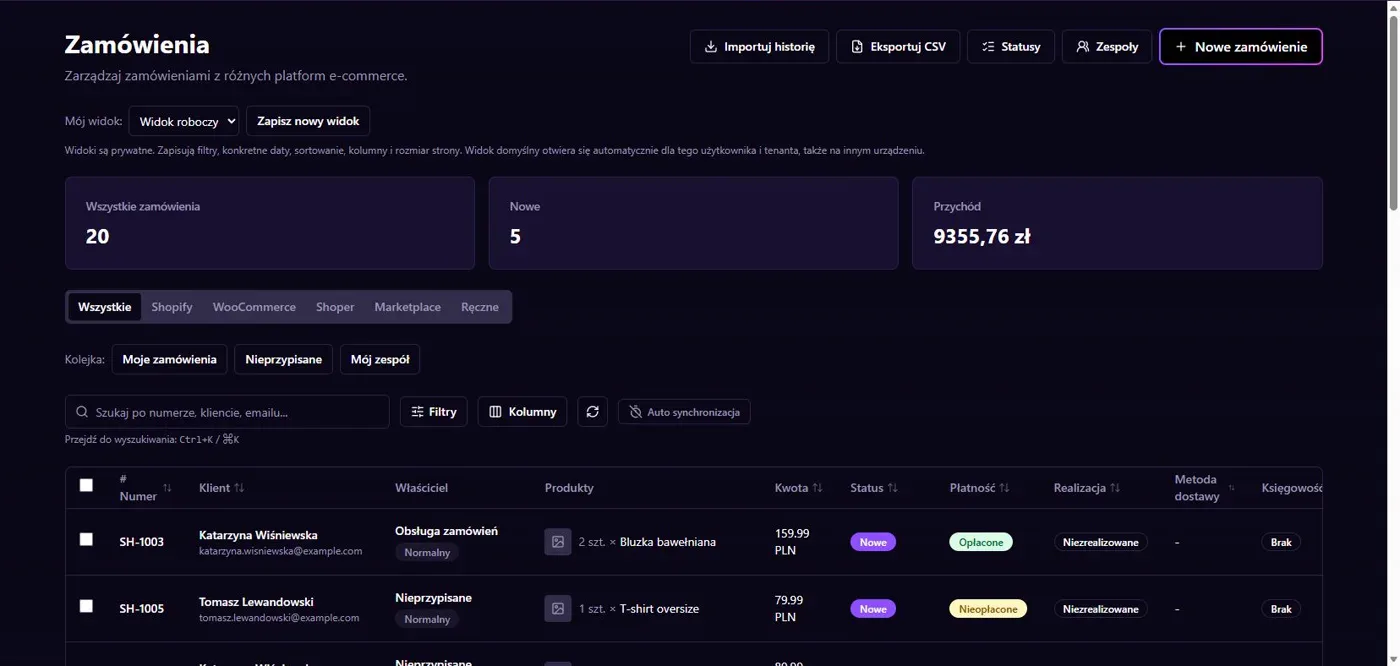
Results in NavyFlame
- Stock by warehouse
- Products and prices
- Orders and invoices
- Official WebAPI
Available stock after reservations
The agent publishes available Symfonia stock after reservations, with an optional safety buffer. Items without stock reach NavyFlame with a quantity of zero.
Products, EAN and prices
Codes, names, EANs, units, VAT rates and the chosen sales price from levels A to T enter the shared NavyFlame catalog.
Orders with reservations
With writing enabled, a paid channel order reaches Symfonia as a customer order, ZMO, with stock reserved. Subsequent stock data includes that reservation.
Invoices in your series
Instead of an order, the agent can issue an FVS invoice in a series selected from your company, with a reservation or an immediate WZ warehouse issue. Symfonia assigns the number.
Return corrections
For a return accepted in NavyFlame, the agent can issue an FKS correction in the correction series. Where the invoice had a WZ document, WZK restores stock.
Identifying an existing document
Each document receives a NavyFlame marker. A retry after a lost connection finds the existing document instead of creating another one.
Local Windows agent
The agent runs alongside Symfonia and connects out over HTTPS. Symfonia WebAPI and the SQL database do not need public internet access for this connection.
Setup
How to connect Symfonia ERP Handel to NavyFlame
- 01
Download the installer
In NavyFlame open Integrations, Symfonia ERP Handel and download the Windows installer. Run it on the Symfonia computer without administrator rights.
- 02
Confirm the code
The installer displays a code. Open the panel, select your company and confirm the code, without copying a token or creating a token file.
- 03
Enter Symfonia details
The wizard asks for the Symfonia WebAPI URL and application key, installs the agent and checks the first synchronisation.
- 04
Check data and enable writing
Products and stock appear in NavyFlame. The agent runs after login. Enable document writing separately in the panel and on the agent computer.
Related integrations
Check the scope of separate connections for your process. An available connector does not mean every pair of systems is supported.
FAQ
Frequently asked questions
No. The local agent establishes an encrypted outgoing connection to NavyFlame. Symfonia WebAPI and SQL do not need to accept internet connections.
Symfonia ERP Handel and Symfonia WebAPI in the same version, a WebAPI licence for Handel, a running WebAPI service and a user with access to Handel.
Products with code, name, EAN, unit, VAT and selected sales price, plus available stock by warehouse.
Yes, after enabling writing. A paid order becomes ZMO with reservation or FVS. Cancellation and returns release reservations only on documents created by the agent.
You select a series from your company in Symfonia. Corrections have a separate series. Symfonia assigns the number when issuing the invoice.
Yes, when KSeF submission is enabled and the company is connected to Symfonia Cloud. The agent confirms the invoice in NavyFlame once Symfonia knows its KSeF number.
Orders and returns have stable NavyFlame markers saved on documents. Retrying the same operation finds the existing document.
Connect Symfonia ERP Handel with online sales
Start with reading data. Agent setup, the connection check and first document write in a test company are part of the assisted implementation.
- 28 days free
- Cancel whenever you want