GEODIS ZOOM / SHIPMENT + NavyFlame
GEODIS integration with NavyFlame
We are preparing an integration based on the public Espace Client ZOOM/SHIPMENT contract. GEODIS must confirm the scope for a Polish contract.
- 28 days free
- Set up in 5 minutes
- Cancel whenever you want
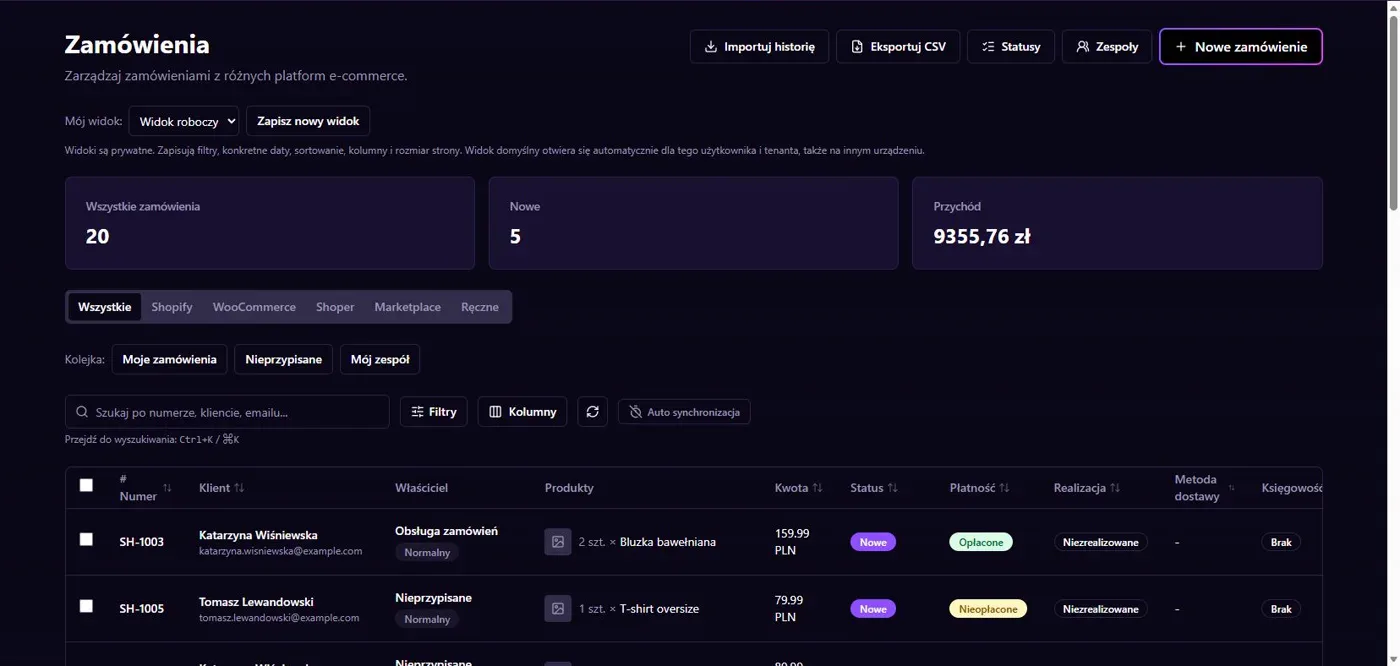
Results in NavyFlame
- Required access
- Preparation status
Required access
You need a My Space login, a SHIPMENT key, a separate ZOOM key, depot code, customer code and contracted product. UAT and production credentials are separate.
Preparation status
The prepared scope covers a single parcel, PDF, status read and a separate pickup in UAT. Production mutations remain blocked pending contract confirmation and acceptance. The regional status dictionary must be confirmed before delivery automation.
Setup
How to connect GEODIS ZOOM / SHIPMENT to NavyFlame
We will help with every step, also during the trial.
Prepare access
Ask your GEODIS contact for ZOOM/SHIPMENT activation, the correct contract documentation and UAT credentials.
Add the connection
Open Integrations in NavyFlame, select GEODIS ZOOM / SHIPMENT and add an account. Save the required details and check the connection before starting the process.
Choose the scope
Add a separate account with depot, customer and product codes. Select sandbox.
Check the result
Verify a shipment, PDF, status and pickup in UAT. Confirm API coverage for a sender in Poland with GEODIS.
Related integrations
Check the scope of separate connections for your process. An available connector does not mean every pair of systems is supported.
FAQ
Questions about the GEODIS ZOOM / SHIPMENT integration
Does saving credentials enable every operation?
No. The connection, account permissions and process rules serve separate purposes. Enable the scope you need and check the result before proceeding.
Explore NavyFlame before connecting your account
Try the demo panel, then configure the connection and verify your chosen process with your own account.