
Monitoring and solving problems without guessing
When an order, a document or a shipment does not appear where you expect, retrace its path. The error record and the result of the last operation tell you where to start.
You spend less time looking for the cause and give support concrete information. You avoid repeating an operation that already partly succeeded.
Step by step
Write down the concrete symptom
Note the order number, the channel, the approximate time and the result expected. State whether what is missing is an import, a status update, an invoice, a label or a message. Check that you are looking at the right company and are not hiding the record with a filter or a date range.
Check the starting point
Open the source shop or marketplace and confirm the order exists and in what state. Then search for it in NavyFlame. Compare the identifier and the time. That separates missing input data from a problem at a later stage of handling.
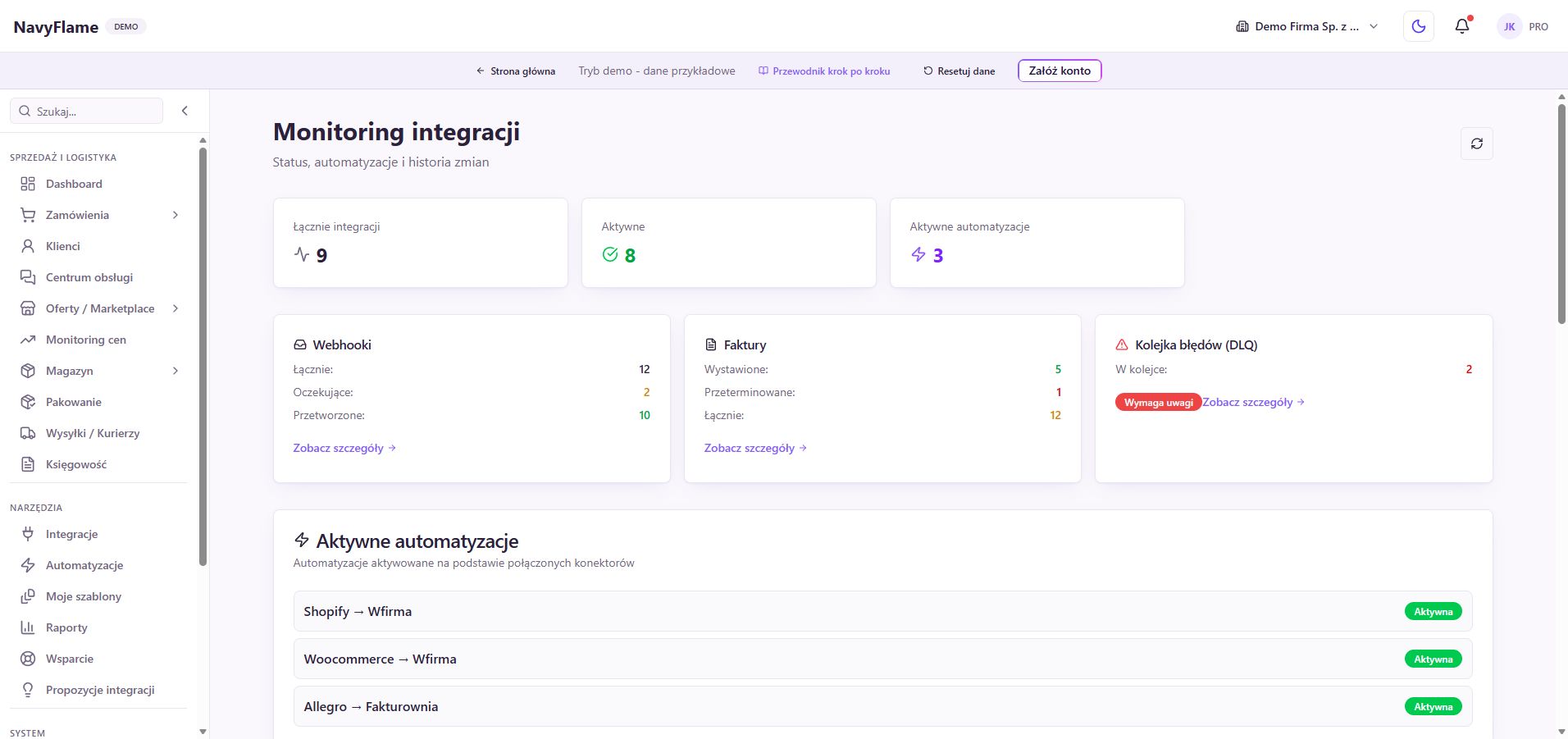
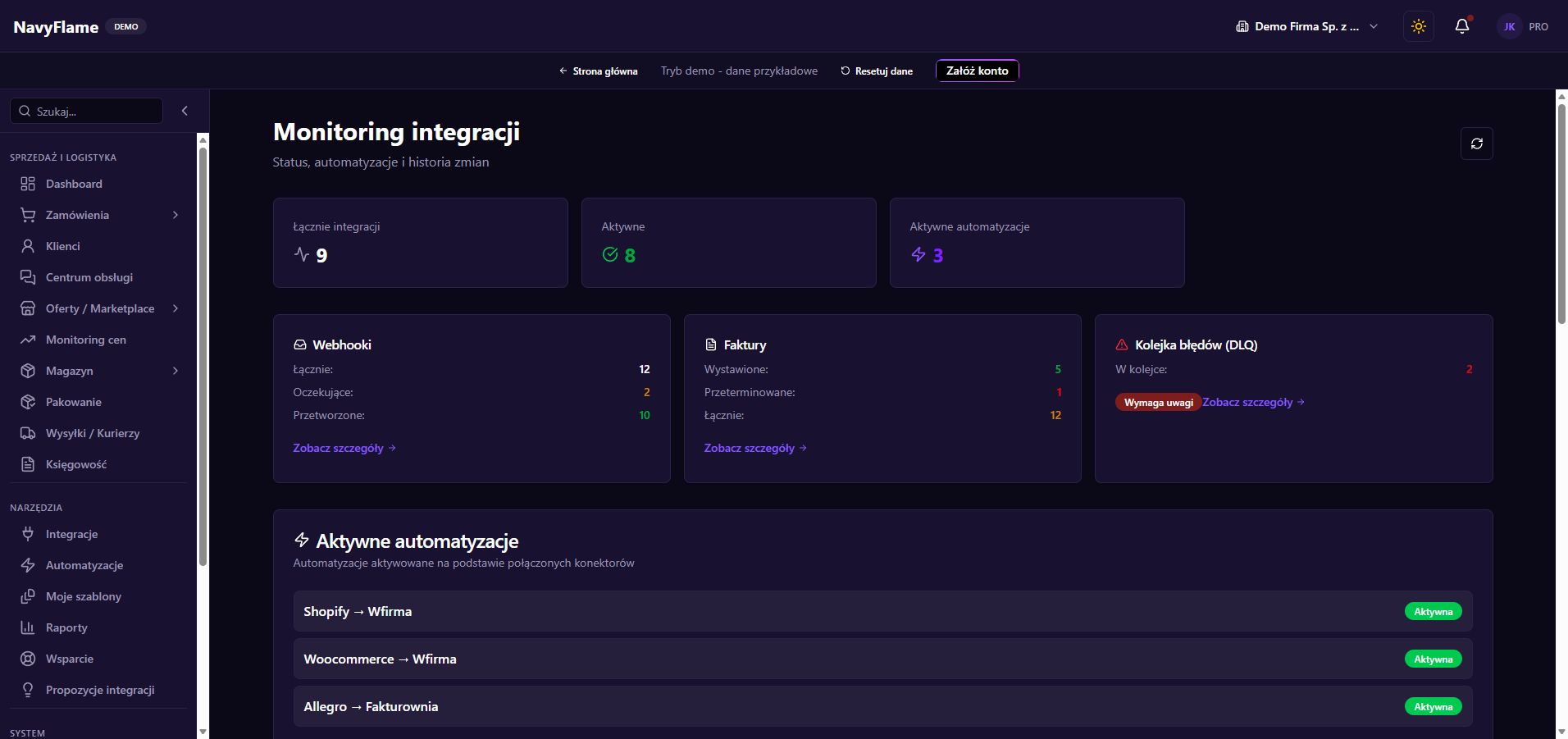
Open integration monitoring
Look through the configuration state, the active flows and the last activity. Use Refresh to fetch the current view. An active configuration tells you about its state, but does not by itself confirm a particular import succeeded. Check the result matching the event you are examining.
Look through the webhook history
Where a process uses webhooks, go to Webhook history and narrow the source and the status. Open the details of a matching entry. If a connection fetches data on a schedule, a missing webhook is not in itself an error; look instead for the result of the relevant synchronisation.
Check the error queue
In the error queue, choose the source and read the entry's details. Establish whether the data, the configuration or access to the service needs fixing. Only once the cause is removed should you use Retry for that item and watch its new result.
Check the log of the right module
For rules, open Automation runs; for mail, the e-mail logs; for documents, invoice processing. For dispatch, go into the shipment details. Match the order identifier and the time rather than picking the first red entry from a different process.
Tell data problems from access problems
Fix a missing address field or a wrong product code in the process data. Check an expired connection under Integrations, following the provider's instructions. With a rate limit or a temporary outage of an external API, read the message about retries. Clicking repeatedly usually does not remove the cause.
Check the result before retrying
If the operation concerns a document, a label or a message sent, check the target system too. Establish whether the effect already exists despite an interrupted response. Retry only the right stage available in the panel, then verify its result from beginning to end.
Give support a useful description
Under Support, give the expected and the actual result, the order number, the channel, the time and the error or run identifier. Attach a screenshot without keys, passwords or unnecessary customer data. Say what you have already checked and whether the process works for other orders.
What this chapter gives you
You can name the stage where the problem sits, use an available retry safely, and give support the data it needs to diagnose further.
The demo lets you learn the screens on sample data. You set up your own integrations once you have an account.