
Returns, complaints and calm case handling
Bring the conversation, the decision and the physical return of goods into one orderly path. Keep handling the case, refunding the money and taking the product back into stock separate.
Whoever picks up a case knows who owns it and what has happened. The warehouse only increases stock by goods that genuinely came back.
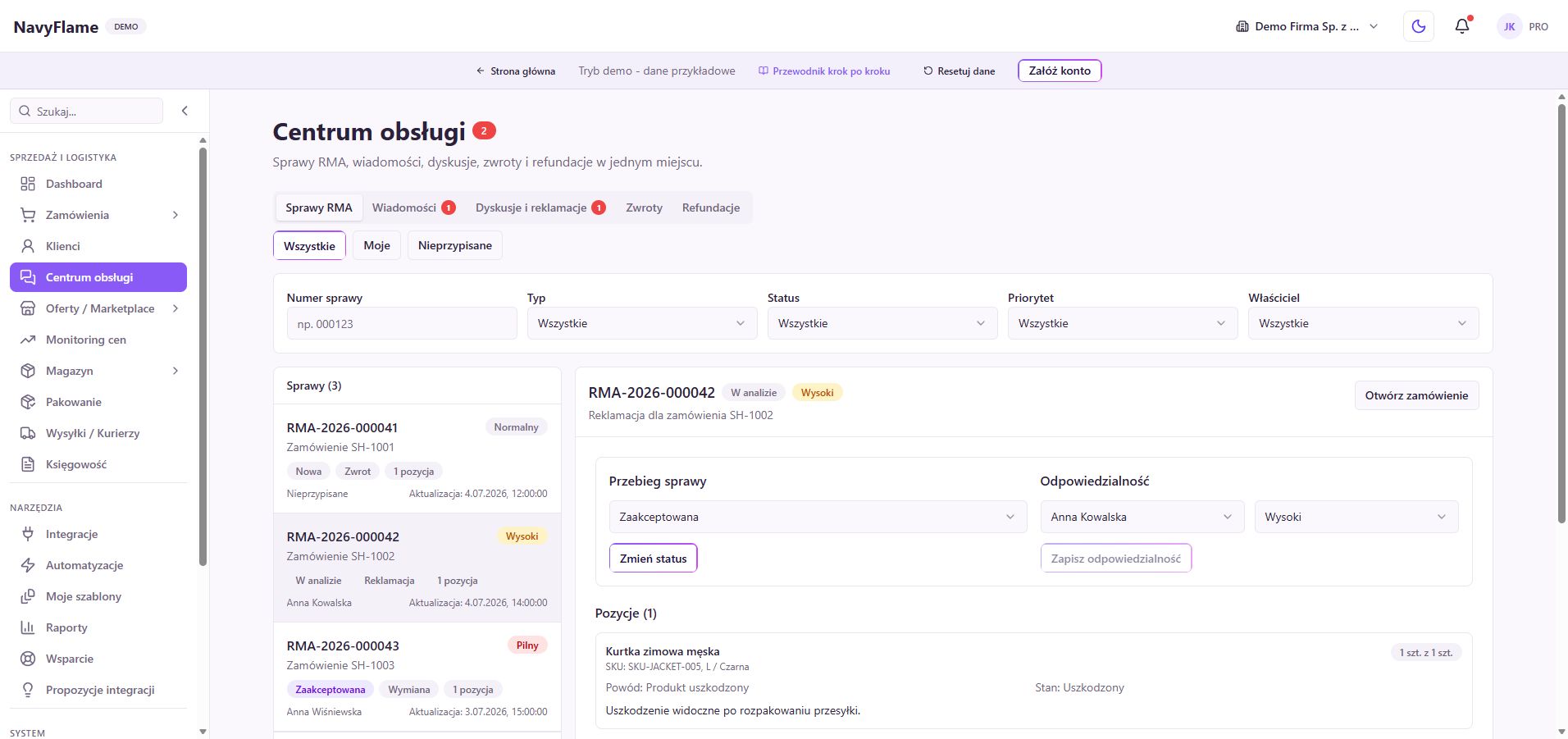
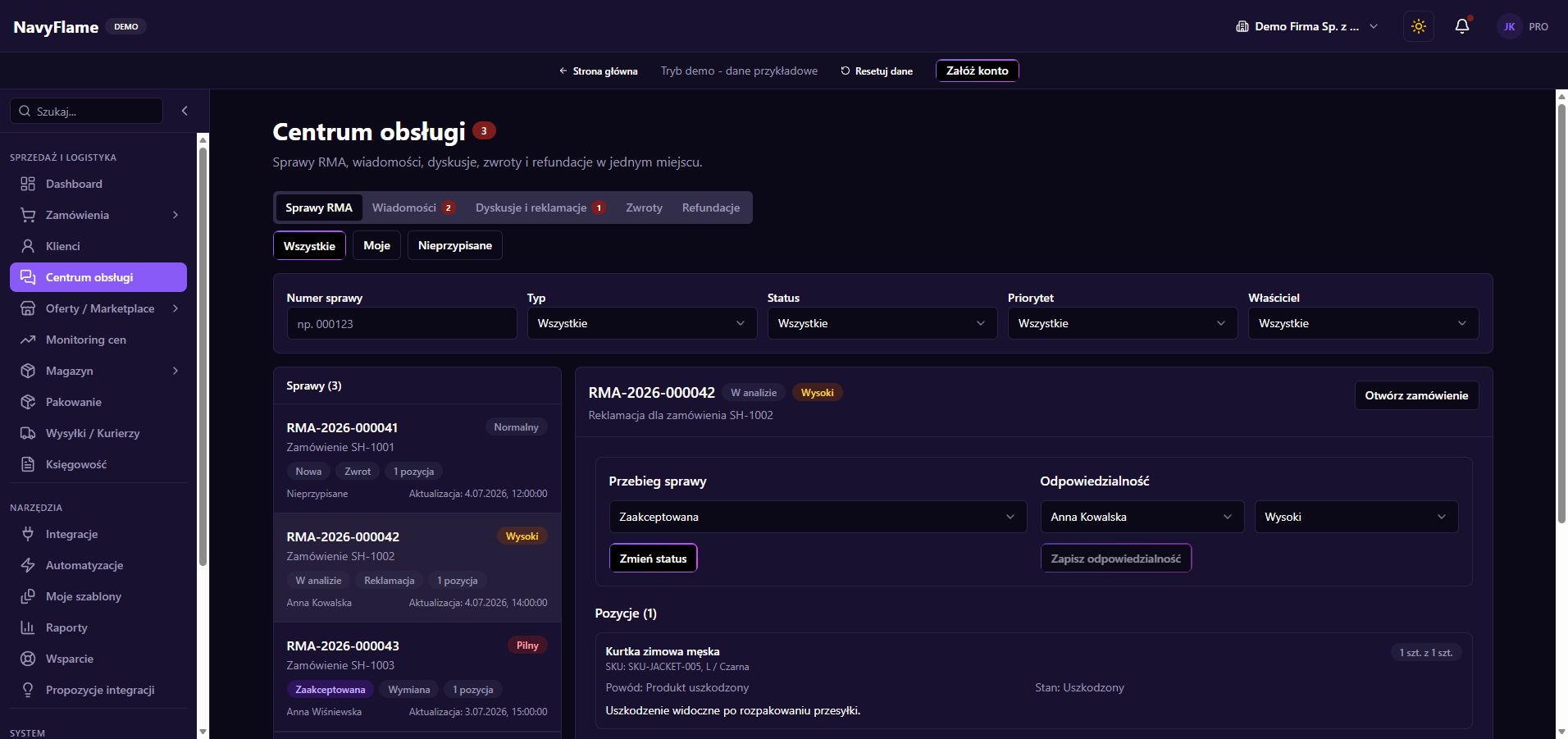
Step by step
Check what the connected channel supports
Open the Service centre and choose the right channel. The tabs cover RMA cases, Messages, Disputes and complaints, Returns and Refunds. What data you see and whether you can change it depends on the connector. Read the note about the actions available for that channel.
Find the order and the full history
Open the case and compare the customer, the channel and the order. Read the recent messages and what was agreed earlier. Establish whether the customer is returning a product, reporting a fault, asking about a parcel, or waiting for a decision already agreed to be carried out.
Check: You are handling the right case and know where it currently stands.
Use RMA for internal organisation
In RMA cases, open the record and, in the Responsibility section, choose the owner and the priority. Click Save responsibility. In Case progress, choose the next status available and use Change status. Check the line items and the change history, which is saved automatically.
Send a substantive reply
In the relevant conversation or dispute, describe the next agreed step. Say what information is missing to resolve the case, and do not repeat questions the customer has already answered. Where a channel is read-only, reply in its own panel and keep the handling context consistent.
Take the decision along an available path
For a return, use Accept return or Reject return where those buttons are available for that channel and state. Fill in the reasoning required. For a complaint, use the resolution methods offered. Base the decision on your own procedure and this particular case.
Receive the physical goods
When the parcel comes back, check the product, the variant, the quantity and the condition of the packaging. Compare the contents with the case. Damaged or incomplete goods should not return to available stock automatically. Settle how they are handled in line with how your warehouse works.
Take the confirmed lines into stock
In the return details, click Take into stock. Choose the location, search for the goods by name or SKU, enter the quantities actually received and confirm. The form requires you to name the products; a return being reported does not confirm what was in the parcel.
Check: It shows Taken into stock, and the level of the right products went up in the chosen location.
Check the settlement separately
Under Refunds, check the state of the financial operation for a channel that offers one. Accepting a return and taking it into stock are no proof that money was paid out. Once the agreed settlement is done, verify the result in the channel or the system that handles the payment.
Close the case with a legible result
Set the final status available and check the RMA history. Confirm that the customer got a reply, the goods reached the right place and the settlement has a known result. When handing over between departments, say who carries out the next step.
What this chapter gives you
Every case has an owner, documented decisions and separate results for customer service, the warehouse and the settlement.
The demo lets you learn the screens on sample data. You set up your own integrations once you have an account.