
Automations that put the team's work in order
Turn repeated decisions about folders, statuses and comments into legible rules. Start small, check what matches, and only then publish the rule.
The team can see why an order reached them and what has already been done. The run history helps judge the result of every rule.
Step by step
Choose the right tab
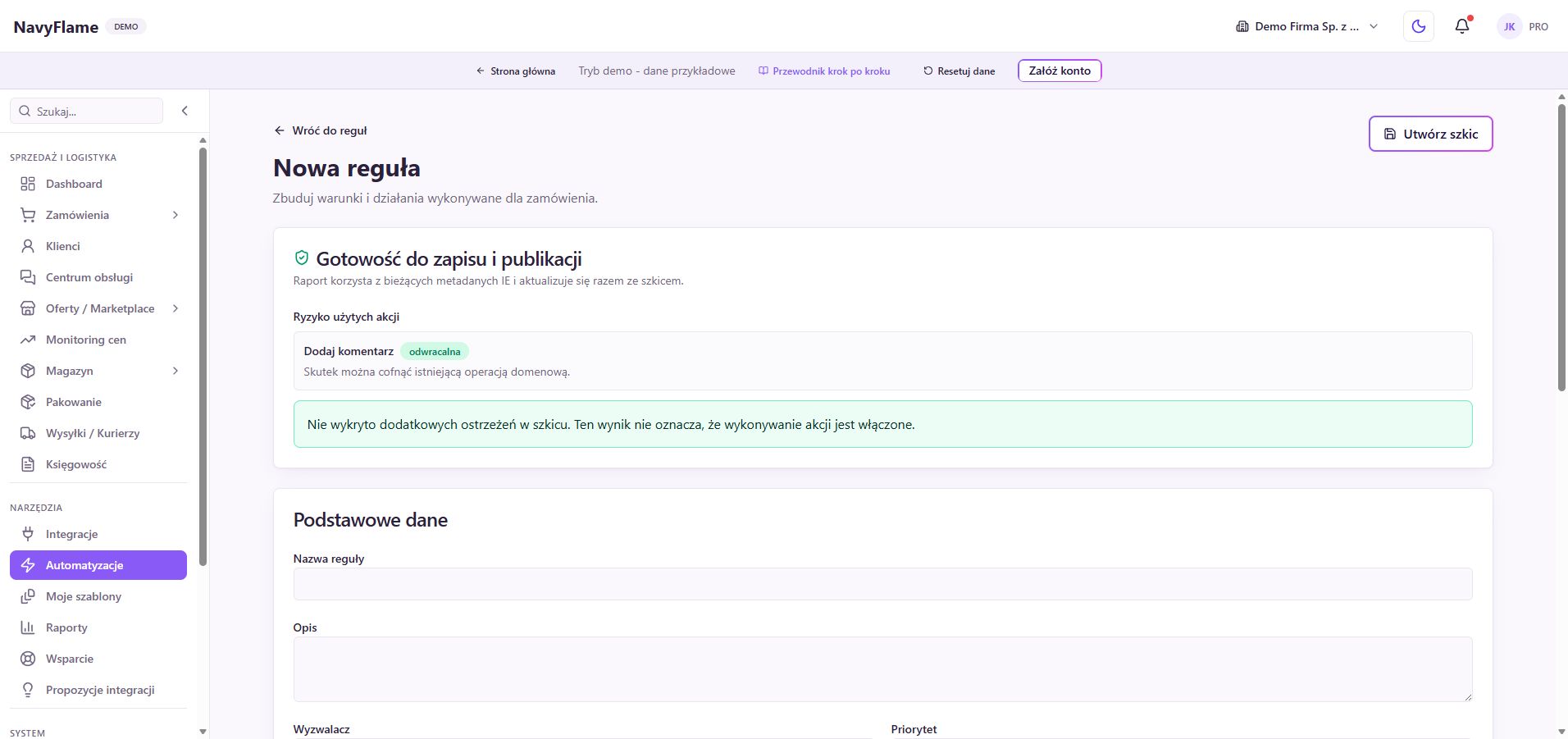
Go to Automations and Rules. This builder handles order events, conditions and tidying actions. Data flows, e-mail notifications and shipping configuration have their own tabs and forms. Which module you use depends on the effect you want.
Create a draft with a clear name
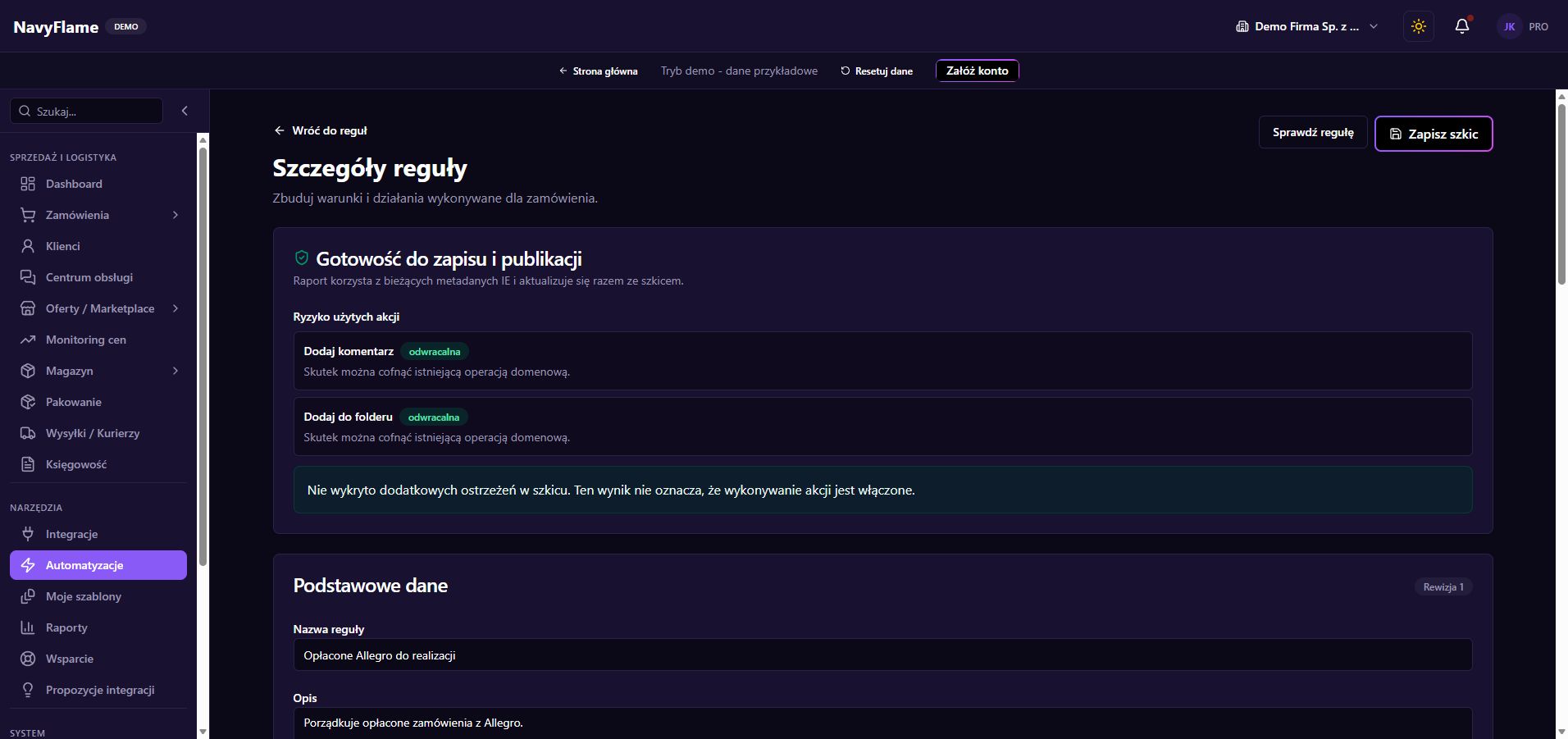
Open a new rule. Enter a name describing the result, for example "Paid Allegro to fulfilment", and a short description. In Trigger, choose the event, for example Order paid. The trigger sets the moment of evaluation, and the conditions narrow which orders match.
Add conditions based on your own data
Choose a field, an operator and a value. You can use the source, payment, status, SKU, country and folders, among others. A group of all conditions needs every one met; a group of any is satisfied when one matches. Start with a simple set.
Check units and missing values
The gross value is expressed in the smallest unit of the currency: for PLN, 100000 means 1000 PLN. Always add a currency condition when comparing an amount. Weight is in grams. Fields belonging to a later stage of the order may be unavailable for a given trigger.
Choose from the actions available
Add a comment, add or remove a folder, set the order status, or create an internal notification. Choose folders and statuses from the lists. Actions run from the top down; you can change their order. Set an optional delay only where it serves a concrete purpose.
Settle how it works with other rules
Check Priority and the After a match field. Decide whether the system should carry on checking further rules or stop. With several rules changing the same status, describe the order and the expected result before switching them on.
Check: No later rule accidentally overwrites the result of an earlier one.
Save and run a test with no effects
Click Create draft or Save draft, then Check rule. Choose the saved draft and one order, or the most recent orders, up to 20. Click Run test with no effects. Look at how the conditions matched and the actions planned; the test carries out no business operation.
Check: A positive example matches, and an order outside the scope does not.
Publish the saved revision
Once you have checked the results, open publication and read its summary. Publish the specific saved draft. Editing a draft again does not automatically replace the active version. Check the active marking and the version indicated before leaving a rule unattended.
Check a real run
Open Automation runs and find the event for the order. Look through the result of the conditions and each action, then the order itself. If behaviour surprises you, use Pause. The version history lets you restore an earlier configuration as a new version.
Recipes you can use
Paid orders to fulfilment
- Trigger
- Order paid.
- Conditions
- The order source matches the chosen channel, for example allegro.
- Action
- Add the comment "Payment confirmed. Prepare the order" and add it to the existing To fulfil folder.
- Checking the result
- Test a paid order from that channel and an order from another source. After publishing, check the folder and the comment.
A larger value needs an extra check
- Trigger
- Order created.
- Conditions
- Currency equals PLN and gross value at least 100000, that is 1000 PLN. Set the threshold to suit your own business.
- Action
- Add to the Check folder and create an internal notification with instructions to verify the delivery details.
- Checking the result
- Check orders below and above the threshold, and another currency. The rule itself does not stop dispatch if the team or other settings start it.
Packing instructions for a given SKU
- Trigger
- Order created.
- Conditions
- The line SKUs contain the exact code of a product needing extra protection.
- Action
- Add the comment "Protect the product with an extra layer and check the packaging" and the Careful packing folder.
- Checking the result
- In the test, use an order containing that SKU and a similar variant with a different code. Confirm the comment is visible to whoever fulfils it.
What this chapter gives you
You have a published rule, the result of a real run, and you know how to pause it and recover an earlier version.
The demo lets you learn the screens on sample data. You set up your own integrations once you have an account.