
Put stock, SKUs and availability in order
Settle the product catalogue, the units and the locations. Then decide when to reserve stock and how availability reaches your offers.
One tidy product can feed several channels, and the team can see what is selling and how much stock is left to work with.
Step by step
Check the card of a representative product
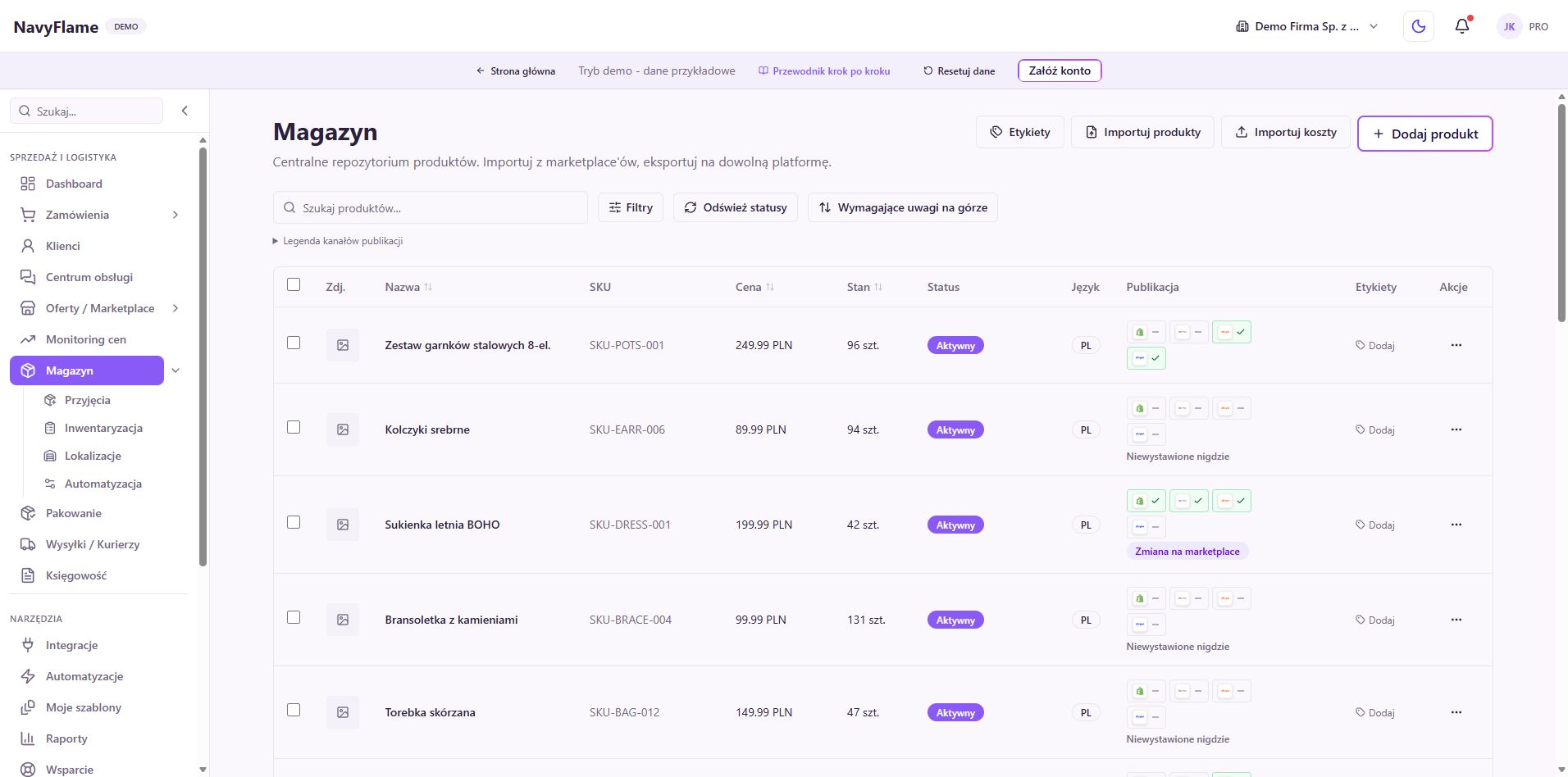
In Stock, open a product or choose Add product. Fill in the name, SKU, barcode and the unit that suits the goods you sell. Check the variants and the photographs. Goods sold by the piece and goods settled by weight each need the right base unit, so that quantities carry a clear meaning.
Link the product to its offers
In the product details, check where it is published across the sales channels. Compare the SKU, the variant and the target account. Two offers for the same goods should use the right catalogue card. Do not join different sizes or colours merely because they share a similar name or the same photograph.
Settle the source of truth for stock
Agree whether stock is held in NavyFlame, in an ERP, in the shop, or fed from supplier data. Describe the direction of updates and who is responsible. Then configure the integrations to match that model. Simply connecting several systems does not decide which of them should overwrite the quantities in the others.
Check: The team knows where it corrects the real quantity and where the other channels should read it from.
Add locations and look at goods receipts
Go to Locations and use Add location to reflect how goods are actually split up in storage. Use short, unambiguous names matching the labels on site. Read up on Goods receipts and Stocktaking before changing larger quantities, so that a correction matches a real warehouse event.
Open the stock flow settings
In the Stock settings, go to the Stock flow tab. The option Enable automatic stock flow governs reserving stock and updating offer availability. It is off by default. Before ticking it, check that the catalogue, the links and the quantities are consistent for the products you sell.
Choose the moment of reservation
In When to reserve stock, choose On every order or Only once paid. The first takes available stock earlier; the second waits for payment information. Match the decision to your process, including cash-on-delivery orders and payments that may be confirmed late.
Set zero handling, the interval and a safety buffer
Decide whether to publish an offer as unavailable at zero stock, and set the synchronisation interval. Enter any buffer in the product's base unit. Availability to ship is the stock level less reservations and the buffer, never below zero. The buffer also applies when stock is passed on by hand, independently of the main automation switch.
Save, then check a full availability change
Click Save settings. On a controlled order, check that the reservation appears at the chosen moment, what availability remains, and the result of updating a specific offer after a synchronisation cycle. If the numbers differ, compare the unit, the variant, the buffer and any other system writing stock before extending the process to the whole catalogue.
Check: The quantity shown in the channel matches the availability you settled, and the reservation concerns the right product.
What this chapter gives you
You have legible goods, a settled source of stock and a proven way of reserving and publishing availability.
The demo lets you learn the screens on sample data. You set up your own integrations once you have an account.