
Prepare offers, prices and publication
Join the catalogue to specific selling accounts, meet each channel's requirements and put your pricing rules in order.
You grow into further channels using a catalogue that is ready and pricing rules you can repeat.
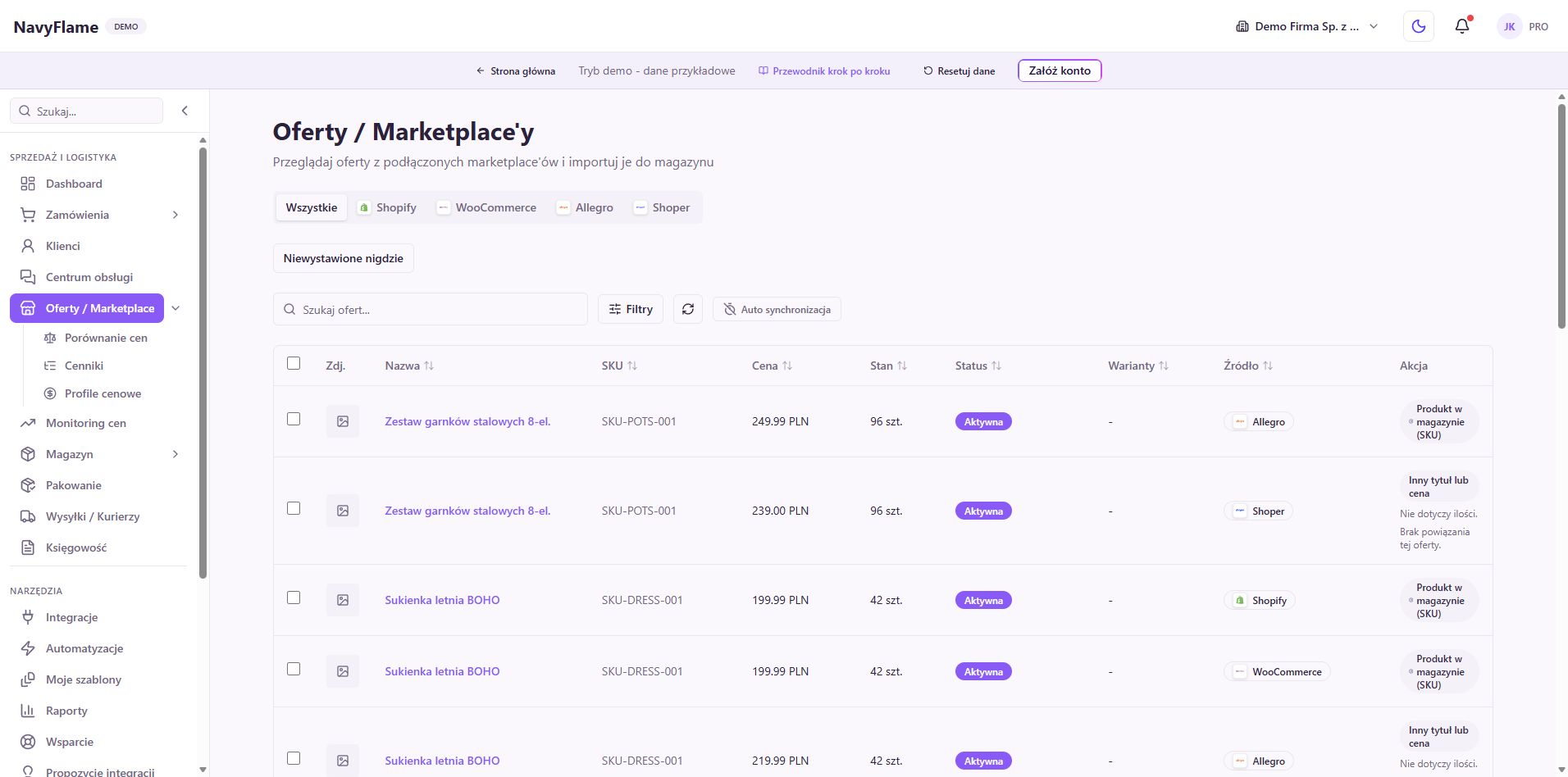
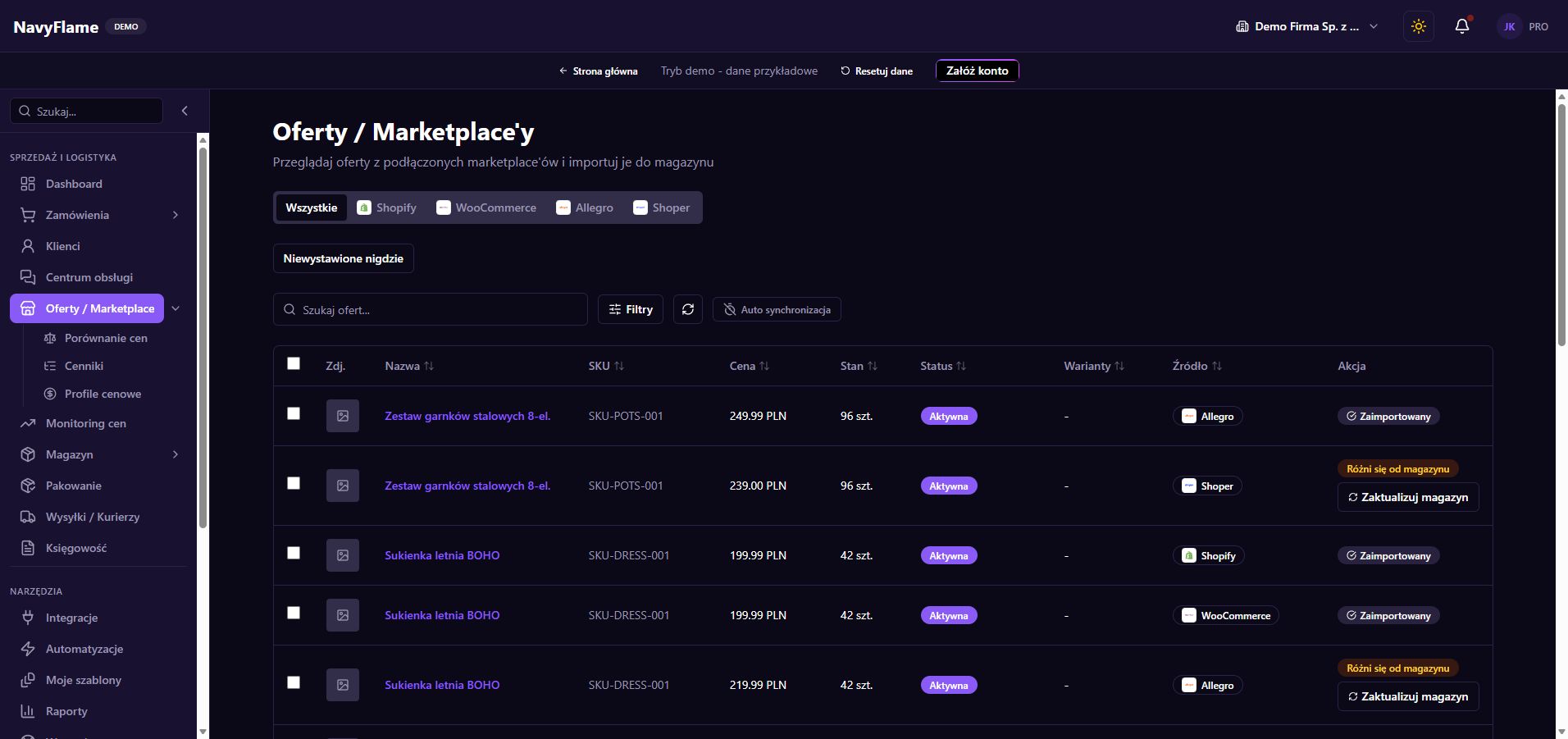
Step by step
Review the existing offers
Open Offers, choose the channel and account, then use the status and import filters. Compare the name, SKU, price and the link to Stock. Importing an existing offer into the catalogue and creating a new publication are different actions. Decide which one you want before selecting a larger batch.
Complete the product before exporting
In Stock, check the description, photographs, variant, unit, price and availability. Prepare the data the particular channel requires. A good card should make it unmistakable what the buyer receives, in what quantity and in which variant. A consistent product means fewer later corrections across many offers at once.
Create a channel pricing profile
Go to Channel pricing profiles in the Offers area. Create a profile for a platform, or for a specific account where different markets need different rules. Set the currency, how the exchange rate is determined, the group margin and the price ending, following the form. That profile is used when publishing and at the next synchronisation of the offer.
Check the arithmetic on a single product
Compare the base price, the target currency, the chosen rate and the final amount. Take your own cost of selling into account when deciding on a price. A margin or mark-up set in the form is not confirmation of real profit once commissions, delivery and the other costs of trading are counted.
Check: You understand why the chosen product carries exactly that price on that particular selling account.
List the first product through Export
In Stock, select one prepared product and click Export. Choose the specific target account, especially where you have several accounts on the same platform. Set the number of units per offer if you use that option. Verify that you are publishing the right variant, in the right shop and the right currency.
Fill in the fields the marketplace requires
In the export form, choose the category and the required parameters. For Allegro, also check the manufacturer, responsible person and product safety information the form shows. Requirements depend on the category and the channel. Data that suits one product need not fit every item you selected.
Confirm the result in the target channel
After sending, check the publication result and open the offer on the shop or marketplace side. Compare the title, photographs, price, variant, quantity and category. A response saying the operation was accepted does not always mean the offer is already live for buyers; some channels run further validation or processing.
Check: The offer is available in the expected state and the buyer's view matches the product you prepared.
Only then widen the publishing
Having checked a few products, move on to larger batches. In the Stock settings, prepare Category mapping, and under Auto-publication choose Enable auto-publication (drafts) and the channels supported. That feature prepares inactive offers for review. Check the price, category and content before you activate them for buyers in the channel.
What this chapter gives you
You have a verified offer in a specific channel and rules you understand well enough to apply to further products.
The demo lets you learn the screens on sample data. You set up your own integrations once you have an account.