
Reports and prices under your control
Check sales, products and how operations ran. Price monitoring helps find discrepancies and prepare recommendations that you approve after your own judgement.
It is easier to spot products needing attention and to weigh sales against costs. You have arguments for decisions on price and on how work is organised.
Step by step
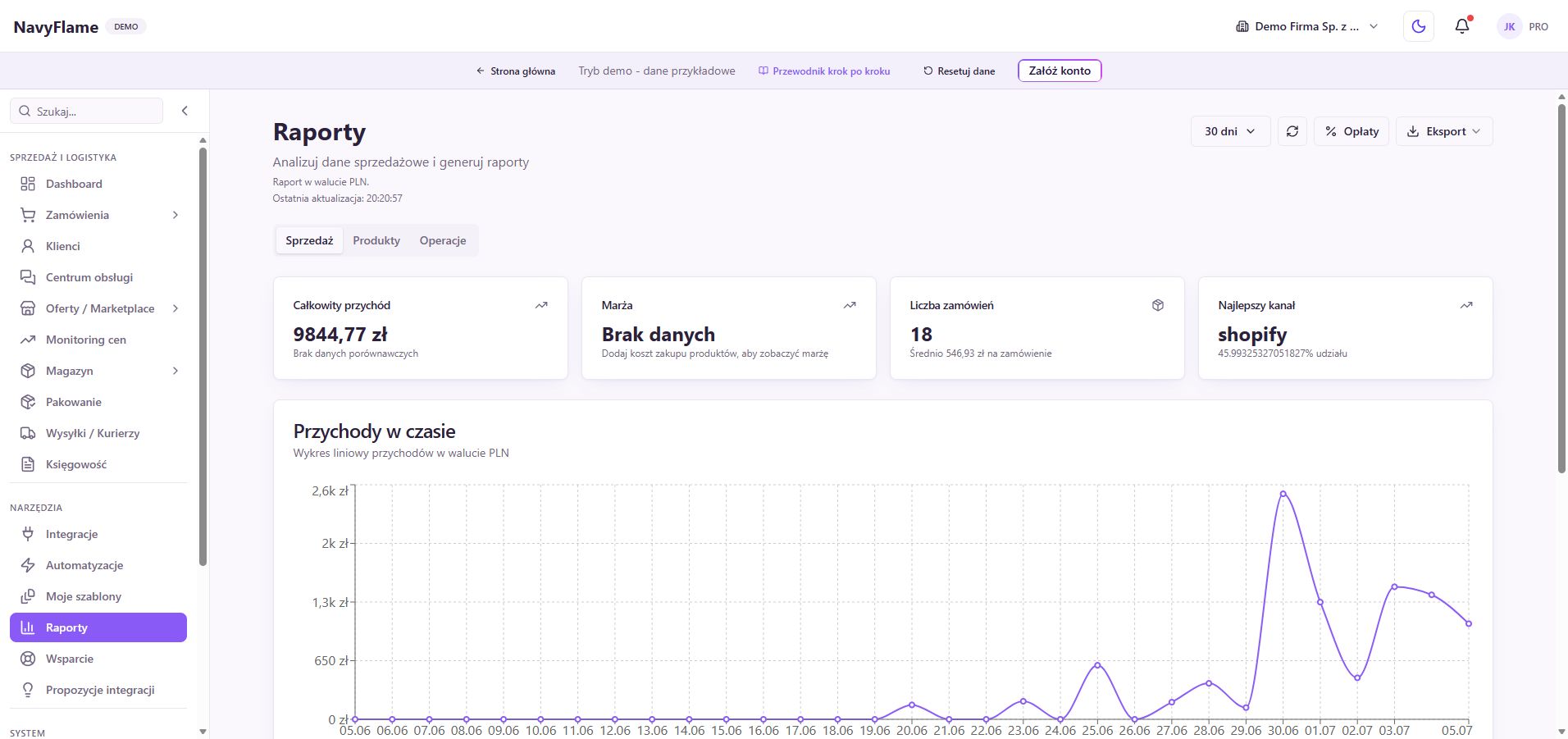
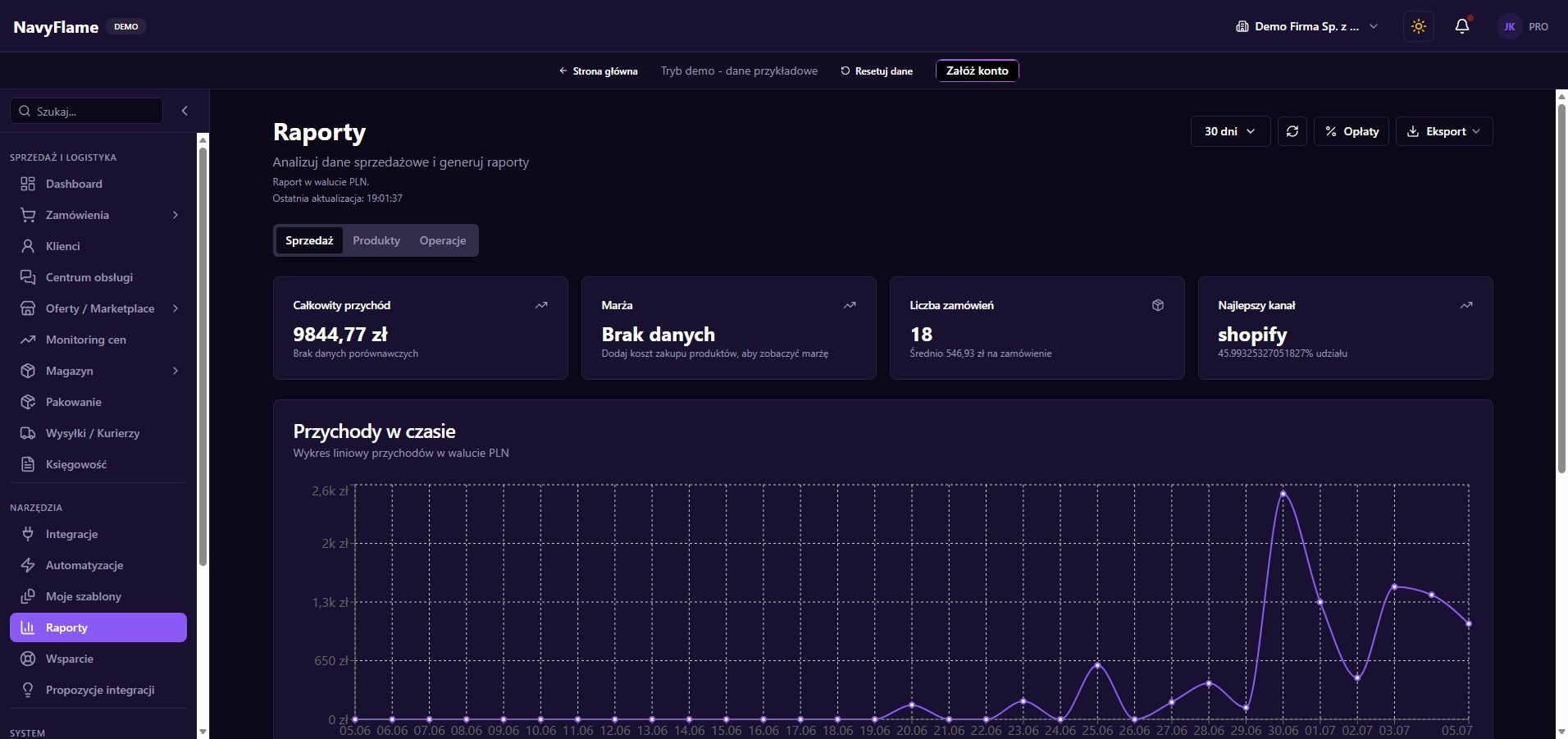
Open Reports and choose the period
Start with a range covering real data from after the channels were connected. The shortcuts include 7, 30 and 90 days among others. Check the active filters and the currency. Analyse revenue in different currencies separately, following the report's own labels.
Look through Sales
Compare the number of orders, the values and the distribution of sales the report shows. If a result surprises you, open representative orders from the period examined. Check their dates and statuses. Where the data import began may limit how meaningful a comparison with an earlier month is.
Move on to Products and Operations
In the Products tab, look for the range that matters to the result. Under Operations, watch fulfilment and the places that could be improved. Write down one concrete conclusion, for example checking an item or changing a process, and who will act on it.
Verify the cost data
Check product costs and the marketplace fee settings available alongside the reports. Without a correct cost, a margin figure may be incomplete. Compare a few items with your own data, bearing in mind which elements of cost a given view actually counts.
Check: You judge margin on data you have checked, and do not equate it automatically with the firm's full profit.
Open Price monitoring
Look through the items marked Below cost, Low margin, Divergence from the offer or Price spread between channels. Check the particular offer, its currency and the linked warehouse product. Fix wrong links or costs first.
Create a narrow pricing rule
In Rules, add a name and a scope, for example selected SKUs. Choose an available strategy: target margin, margin floor, price from stock, mark-up, fixed price or a price list. Fill in the values required, the price limits and how rounding works.
Switch on the preparation of recommendations
In the repricing settings, set the frequency, the low margin threshold and the price spread threshold. Tick notification about recommendations if that is useful. Save the settings, then use Run now for a first controlled evaluation.
Judge and approve the suggestions
Under Suggestions, compare the current and proposed price, the reasoning and the margin. Approve the changes you deliberately choose, or reject those that miss the mark. Repricing prepares recommendations; it does not change prices by itself without approval. Verify the result of pushing a change to the channel.
Check: The new price matches the decision, and any publication error has been recognised.
Return to History and to the result
Check the history of pricing decisions and, after a suitable period, come back to the reports. Compare sales and margin over a similar range. Do not draw a conclusion from one order alone, or from periods with different product availability.
Recipes you can use
A price review for a small group of products
- Trigger
- The repricing schedule or the Run now button.
- Conditions
- The rule covers selected SKUs with verified costs; the strategy and the price limits match the shop's policy.
- Action
- The system prepares recommendations. Whoever is responsible reviews them and approves the proposals they choose.
- Checking the result
- Check the history, the publication result and the price in the channel. Measure the outcome after a set period, keeping the conditions comparable.
What this chapter gives you
You can read a sales result, find a pricing problem and carry out a controlled change with confirmation in the channel.
The demo lets you learn the screens on sample data. You set up your own integrations once you have an account.